Guide
How to use DMX Flashback Events
Set up your DJ lights, let them follow the music, and stay safe with fog and lasers. Short steps, plain words.
Getting started#
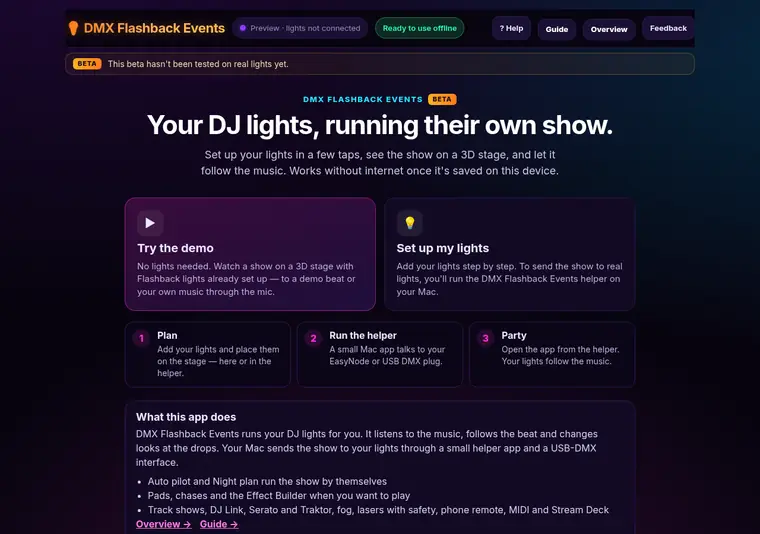
DMX Flashback Events has two parts: the app (this website, or the copy inside the helper) and a small helper app for your Mac that sends the show to your lights.
- Open the app and tap Connect lights, then Download for Mac. macOS 11 or later, Apple silicon or Intel.
- Open the zip and drag DMX Flashback Events to Applications. Double-click it.
- First time only: if the Mac says it can't check the app, click Done, open System Settings → Privacy & Security, scroll down and click Open Anyway.
- If it asks to find devices on your local network, click Allow. That is how it finds a Wi-Fi DMX box like the EasyNode.
- Click Open Lights app in the helper. Your lights and stage come with you, and it works without internet.
New here? Tap Try the demo on the start screen. You'll see a show on a 3D stage with no lights plugged in. Then tap ? Help → Show me around for a short tour.
Connecting lights: DMX interface and addresses#
Your Mac talks to the lights through a DMX interface: a Wi-Fi box such as the Pknight EasyNode (Art-Net), or a USB-DMX plug. You can use both at once.
- Plug the DMX cable from the interface into the first light, then light to light.
- In the app's setup, pick your interface. The helper shows DMX interface: connected when it's found.
- Add each light and pick the channel mode it is set to (for example 6-Arm Hybrid, 26CH).
- Type the DMX address shown on the light's own display. Lights must not overlap: the app warns you if they do.
- Use Find to flash one light at a time and check you have the right one.
One EasyNode is one universe of 512 channels. That's plenty for a mobile DJ rig.

Room and mounting#
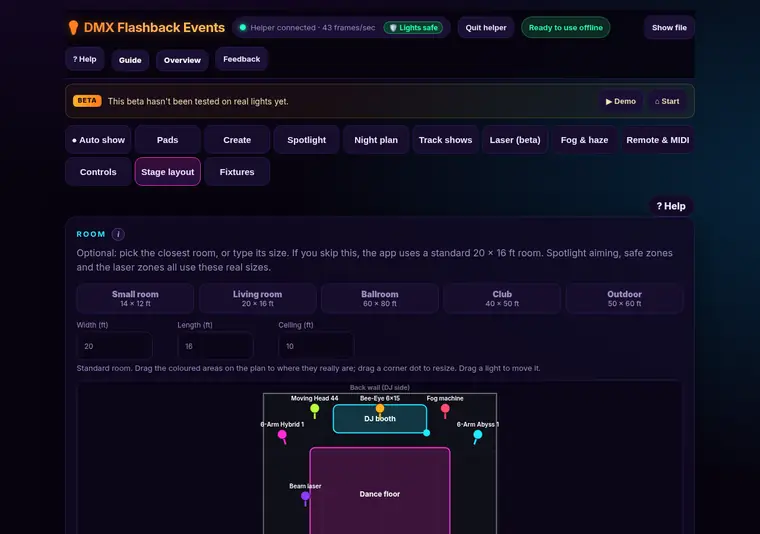
- Open Stage layout and pick a room size (or type your own).
- Drag each light to where it really stands. The 3D view shows what the guests will see.
- Pick how each light is mounted: on the floor, on a truss, or hanging upside down. Moving heads then aim the right way.
- Use Point check to make sure a moving head really points where the app thinks it does.
Looks, pads, chases and the Effect Builder#
Pads
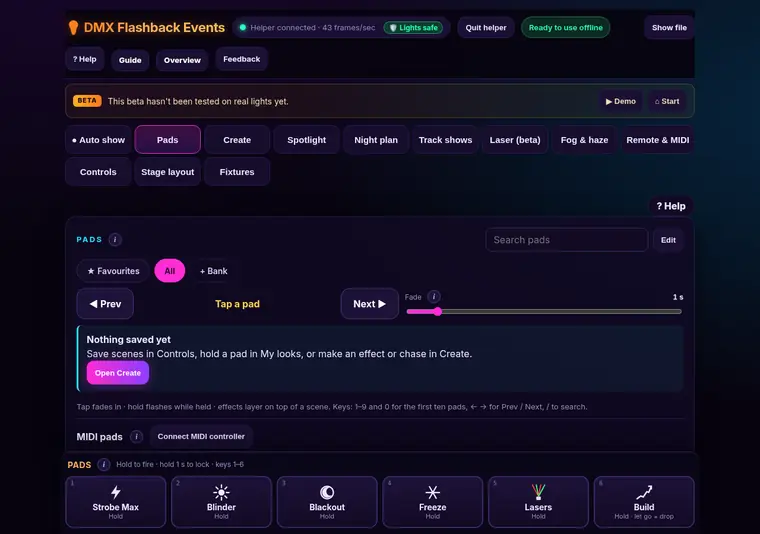
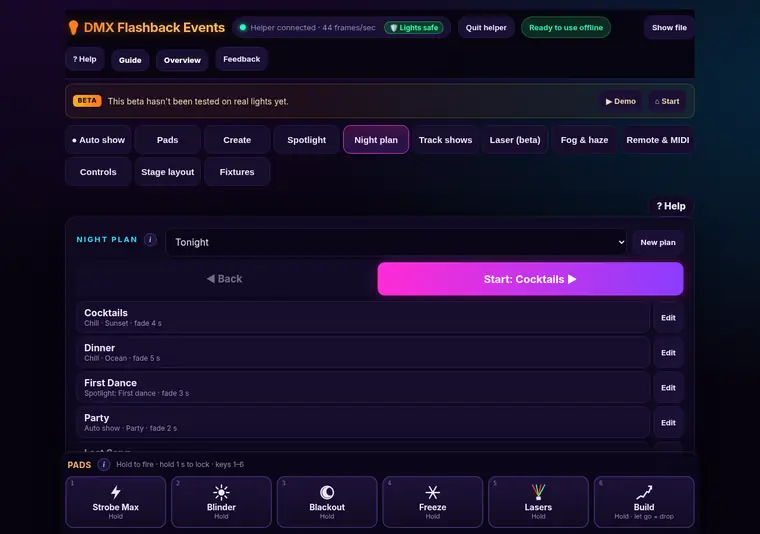
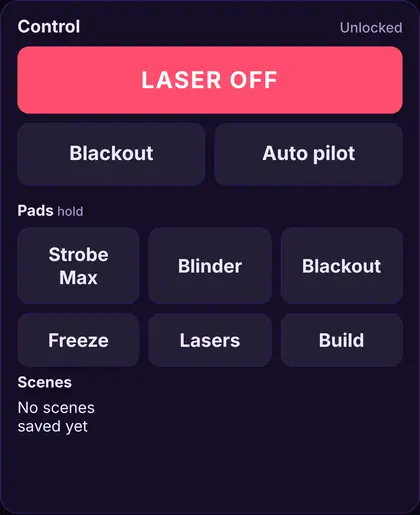
The pad bar sits at the bottom of every screen. Hold a pad for a strobe, blinder, blackout or laser hit. Let go and the show carries on. Hold for one second to lock it on. Keys 1 to 6 work too.
Looks and scenes
Save what you see as a scene and tap it to bring it back. Make my looks builds a set of looks for your lights in one tap.
Chases
Put scenes in a row and they step on the beat.
Effect Builder
On the Create tab, pick an effect (wave, color chase and more), choose the lights or groups, and drag the sliders. Every slider has a number box next to it, and they always match.
Your lights' own auto, sound and reset programs are never triggered by shows, sliders or pads, so a show can't make a light do something unexpected.
Auto pilot and Night plan#
Auto pilot
Turn on Auto show on the first tab and the lights follow the beat. Auto pilot picks the mood from the music (chill, party or peak), changes the look every few phrases, and calms down for speeches.
Night plan
Add the moments of your night (dinner, first dance, party, last song) and give each one a look, a scene or Auto pilot. Tap Next when the moment comes, or let it move on at each drop.
Timeline show editor (Track shows)#
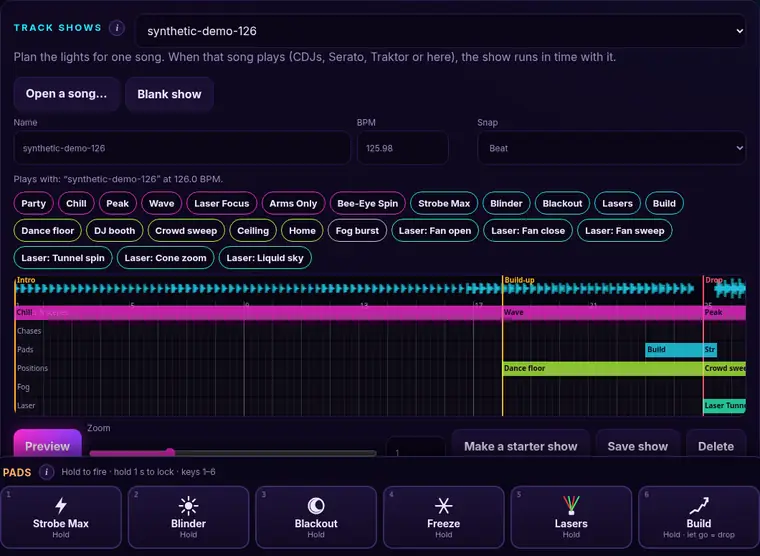
- Open Track shows and tap Open a song…. The app finds the tempo, the first beat, the build-ups, drops and breakdowns. The song stays on your computer.
- Tap Make a starter show, or drag chips (looks, scenes, chases, pads, positions, fog, laser looks) onto the lanes. Blocks snap to the beat, bar or phrase.
- Tap Preview to watch it with the song.
- Link it to a deck's track (DJ Link) or play the same song in Serato or Traktor: the show runs in time with it, by itself.
Laser blocks only run while you have armed the laser and every safety check passes. Fog blocks need fog allowed for the venue and “Let shows use fog” turned on.
Groups, layers and position presets#
Groups
Make groups such as Left, Right or Back in Stage layout. Use them in the Effect Builder, pads and position presets.
Layers
Base, effects and pads are layers with their own level sliders (on Controls), so a pad can sit on top of the show without stopping it.
Position presets
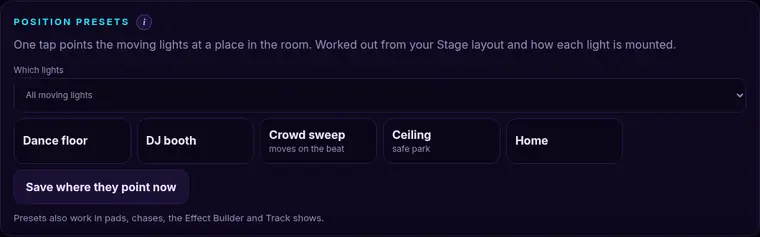
On Spotlight you'll find places for moving heads to point at: Dance floor, DJ booth, Crowd sweep, Ceiling and Home. Save your own, pick a group, and use them in chases and Track shows.
Fixture library and profile import#
The Flashback lights are built in (6-Arm Hybrid and Abyss, Moving Head 441, Bee-Eye 6×15), plus generic pars, dimmers, moving heads, fog machines, hazers and DMX lasers.
- For another light, open Fixtures → Import a profile and pick a grandMA2 (.xml) or Avolites (.r20 / .d4) file from the maker.
- If the file matches a built-in light, the app uses the built-in. Otherwise it becomes one of My profiles.
- Check the channels in the profile editor: name, what each channel does, value ranges, 16-bit pairs and the colour wheel.
- Add the light to your rig and set its address.
Channels that start the light's own program (auto, sound, macro, reset) are marked guarded. Shows, sliders and pads never send them.
Fog and haze#
Fog can set off smoke alarms. Always ask the venue first.
- Add a fog machine or hazer in Fixtures (Generic fog machine or Generic hazer).
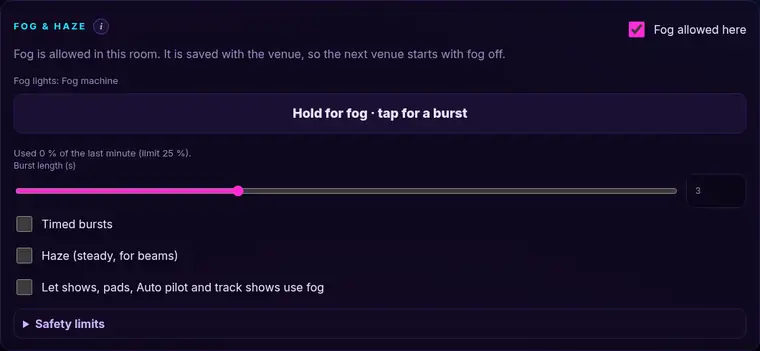
- Open Fog & haze and turn on Fog allowed here. It is saved for this venue only: the next venue starts with fog off.
- Hold the big button for fog, or tap it for a short burst. Timed bursts and steady haze are there too.
- Safety limits stop bursts that are too long, and too much fog in any minute. Shows, pads and Auto pilot only use fog if you allow it.
⚠ Laser safety and the Helios#
Lasers can hurt eyes. Read this before you use one, and follow the rules where you play.
- Never aim a laser at people. Beams must stay above the safe height (3 m / about 10 ft by default). Set the room height honestly.
- Start at low power. The app caps power until you tick “tested at low power”.
- Only you can arm a laser, on the DMX Flashback Events screen. MIDI, Stream Deck and the phone can switch lasers off, never on.
- LASER OFF (top of the screen) and the Esc key stop every laser at once.
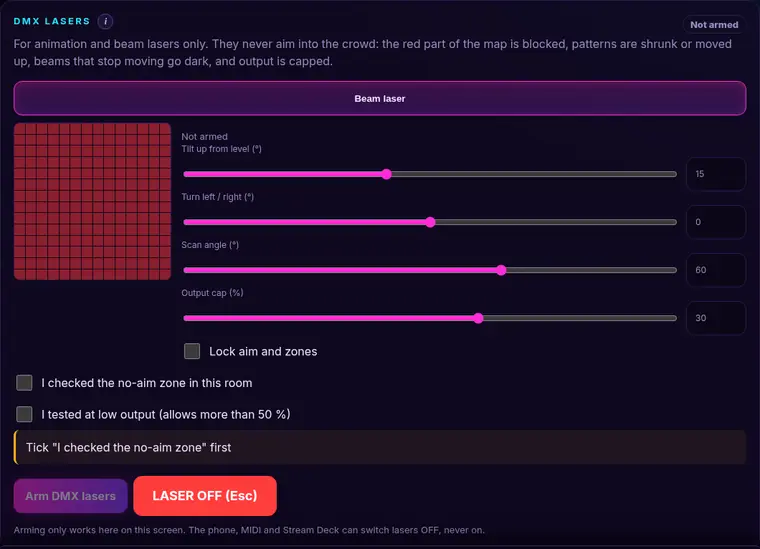
- DMX beam and animation lasers get extra rules: a no-aim zone over the crowd and a beam that blanks if it stops moving for one second. The starry lasers built into the Flashback 6-Arm lights are not affected.
Helios laser DAC
The Laser tab drives an ILDA laser through a Helios DAC connected to the helper. Pick a laser look, check the 3D preview, then arm. Laser cues in Track shows only run while armed.
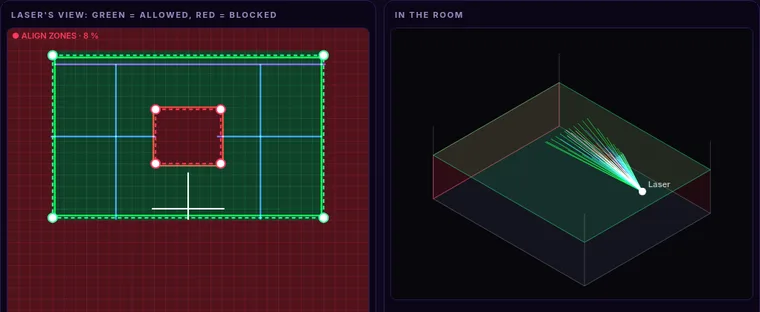
Before every gig, use Align zones to see where your zone edges land in the room.
DJ Link, Serato and Traktor, and next-song ideas#
Pioneer DJ Link (CDJs / XDJs)
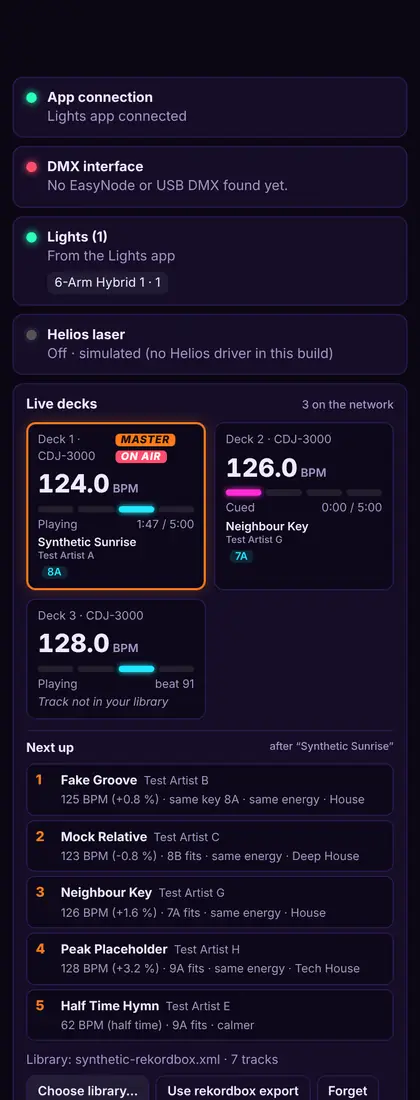
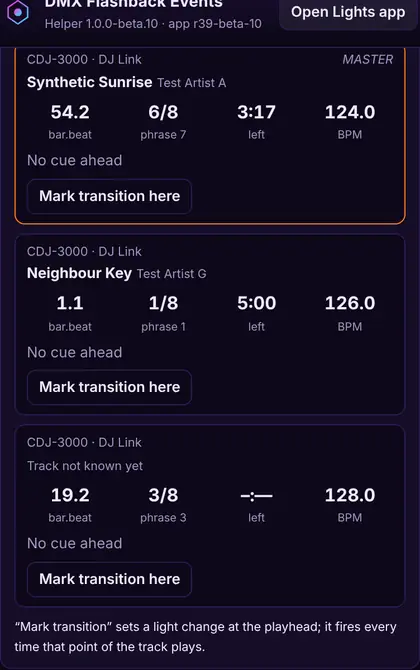
The helper listens on your network for CDJs. It shows each deck's BPM, beat, phrase and time left, and the lights lock to the master deck. With DJ Link track data on (in the helper), it also reads the waveform and cue points.
Serato and Traktor
Turn them on in the helper under Music sources. Serato: the helper reads the track that's playing from Serato's history. Traktor: follow the steps shown in the helper to send the track info to it. Tempo can also come from MIDI clock.
Next-song ideas
Pick your rekordbox library export in the helper to see track names and ideas for the next song: same key, close BPM, same energy. Your library stays on your Mac.
“Mark transition here” sets a light change at that point of the track. It fires every time that point plays.
Phone Live view and remote#
- In the helper, turn on Live view. Scan the QR code with your phone and type the PIN.
- The phone shows each deck: BPM, counters, time left, waveform and the next songs.
- For a remote, turn on Allow control from the phone. It has its own control PIN.
- The phone can fire pads, scenes, Blackout, Auto pilot and LASER OFF. It can never arm a laser or use fog.
MIDI and Stream Deck#
MIDI controllers
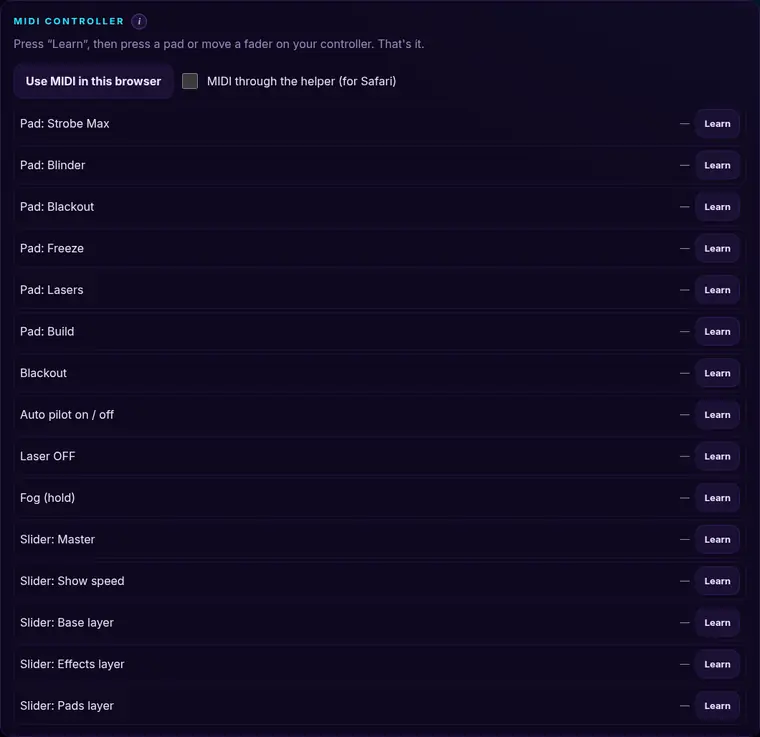
- Open Remote & MIDI and tap Use MIDI in this browser (Chrome, Edge). On Safari, tick MIDI through the helper.
- Tap Learn next to an action, then press a pad or move a fader on your controller.
- Pads and fog follow press and release; faders move master, show speed and the layers.
Stream Deck
In the helper, copy a link from Stream Deck and paste it into a Stream Deck Website button, with “GET request in background” ticked. Links work only on this Mac. New remote key turns off old links.
No remote can arm a laser. Laser OFF works from all of them.
Show file and backup#
Everything is saved on this device as you go. To move to another Mac or keep a backup, tap Show file at the top: Export saves your lights, stage, scenes, looks, night plans and shows to one file; Import brings it back. Venues keep their own room and fog setting.
Align laser zones (test pattern)#
Before the guests arrive, check that your zones really sit where you think: on the stage, the walls and the crowd edge.
Helios laser: Align zones
- Open the Laser tab, tick the three checks and Arm the laser (on this screen; no remote can do it).
- Tap Align zones. The laser draws your zone outlines (green = allowed, red = blocked), a blue grid and a white crosshair at very low power: 8 % at most, and never above your power setting.
- Drag a zone's corner dots on the laser view. The outline in the room moves with it, live. The grid shows your size, position, rotation, keystone and flip settings.
- When every edge lands where it should, tap Lock zones. That saves them and turns the test pattern off.
The crowd guard and your blocked zones still apply while you align: anything below the safe height stays dark. LASER OFF or Esc stops it at once, and it blanks by itself if the app stops talking to the helper or the laser stops taking frames.
DMX beam and animation lasers: Check corners
On the Laser (beta) tab, in the DMX lasers card, arm them, pick a laser and tap Check corners. It aims at each corner of that laser's safe area in turn (a small circle, at 10 % output or less) while the other DMX lasers stay dark. Tap Next corner to move on and Done when you're happy. If a corner lands somewhere it shouldn't, change the laser's tilt or turn.
Support us, shop and updates#
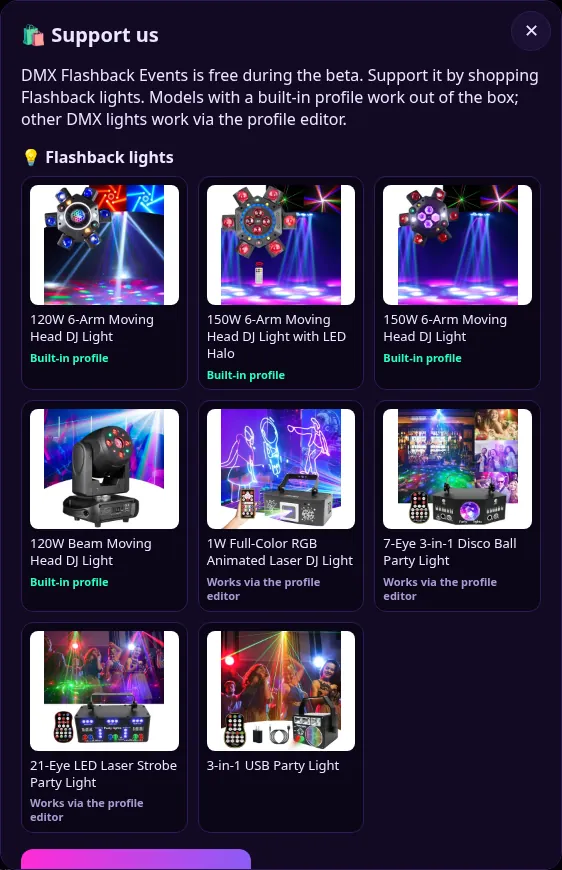
DMX Flashback Events is free during the beta. If it helps your shows, you can support it by shopping Flashback lights. Models with a built-in profile work out of the box; other DMX lights work via the profile editor. Tap 🛍️ Shop at the top of the app: it shows the lights, and links each built-in Flashback model in Fixtures to its product page.
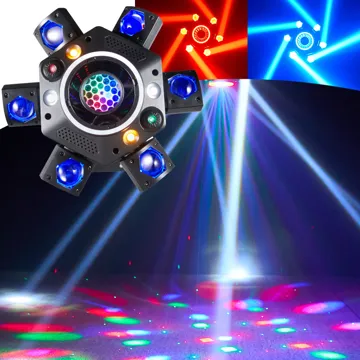 120W 6-Arm Moving Head DJ LightBuilt-in profile
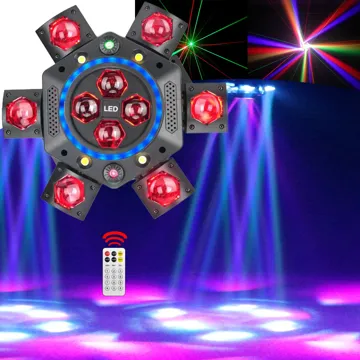 150W 6-Arm Moving Head DJ Light with LED HaloBuilt-in profile
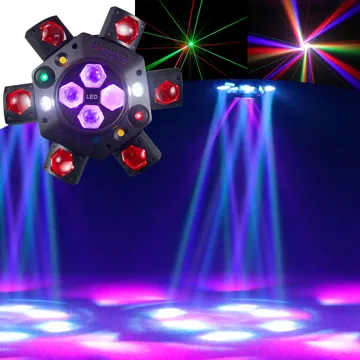 150W 6-Arm Moving Head DJ LightBuilt-in profile
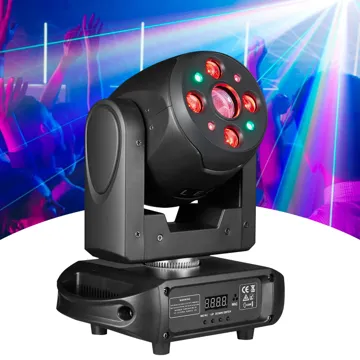 120W Beam Moving Head DJ LightBuilt-in profile
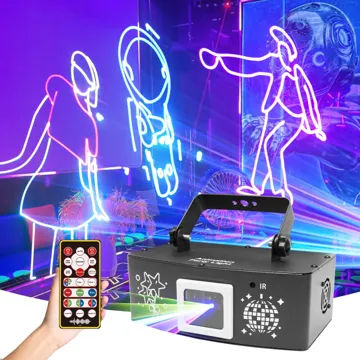 1W Full-Color RGB Animated Laser DJ LightWorks via the profile editor
 7-Eye 3-in-1 Disco Ball Party LightWorks via the profile editor
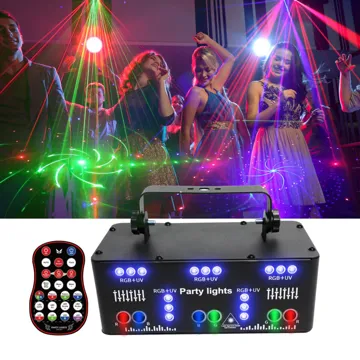 21-Eye LED Laser Strobe Party LightWorks via the profile editor
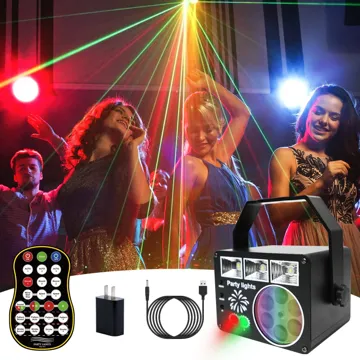 3-in-1 USB Party Light
If you prefer to shop on Amazon 👉 Shop our Amazon store here
Follow us: Instagram TikTok YouTube
Get updates: app news, lighting tips and the occasional lighting deal by email. Sign up in the app. You get a welcome discount code for the Flashback lights shop, and you can unsubscribe any time.
Feedback#
Found a bug or have an idea? Tap Feedback at the top of the app. You choose whether to include app info (app version, browser, your light list and the helper version). It goes to the Flashback Events team.
Troubleshooting and FAQ#
My lights don’t react.
Check the helper says Connected and the DMX interface is found. Check the DMX cable goes into DMX IN on the first light, and that the light is in DMX mode.
One light does the wrong thing.
Its DMX address or channel mode doesn’t match. Look at the light’s own display and set the same in Fixtures.
The Mac won’t open the helper.
System Settings → Privacy & Security → Open Anyway. You only do it once.
The helper can’t find my EasyNode.
Allow local network access for the helper, and make sure the Mac and the EasyNode are on the same Wi-Fi.
Does it work without internet?
Yes. Once opened, the app is saved on the device, and the helper has its own copy.
Can a remote or my phone turn on a laser?
No. Lasers can only be armed on the DMX Flashback Events screen. Remotes can only switch them off.
Fog doesn’t fire.
Turn on “Fog allowed here” for this venue. For shows and pads, also turn on “Let shows use fog”. A short rest between bursts is normal.
Is my music sent anywhere?
No. Songs you open for Track shows are analysed on your computer. Your rekordbox library stays on your Mac.
Still stuck? Tap Feedback in the app and tell us what happened.